agent-browser for the desktop: letting Claude Code drive Windows apps (field test)
Table of Contents
agent-desktop is a command-line tool from Vercel Labs, the same organization behind agent-browser. It works the same way and its docs live on the same site. It reads the operating system's accessibility tree (UI Automation on Windows), prints a window as JSON, and attaches a ref to every element an agent can act on. The agent runs click or set-value on a ref, then reads again to check the result. There is no model inside the tool. Observing, deciding and verifying all happen in the Claude Code session that calls it.
This post is for people who already use Claude Code or agent-browser. The README covers the features well. What we add is what happened on Windows: which apps read cleanly, which do not, and where the documentation and our results disagree. Test setup: Windows 10 Pro (build 19045), agent-desktop 1.2.0, November 10, 2026. On that day the project had about 21,000 GitHub stars and an Apache-2.0 license.
Before publishing on November 18, 2026, we rechecked against 1.3.1, the latest release at the time. The 1.3.0 and 1.3.1 changes are about macOS (a new sandbox command and a macOS VM) and a Linux dependency. The commands in this post and their behavior on Windows did not change. On the same machine we reran status, skills get platform, list-windows and the system tray snapshot with 1.3.1, and all of them ran normally. The status fields and the list of supported surfaces are identical to 1.2.0.
Install: two minutes
You need Node.js 18 or later and Git for Windows. The command below pins 1.3.1, the latest release on November 18, 2026. The numbers and screenshots in this post were measured on 1.2.0.
npm install -g agent-desktop@1.3.1
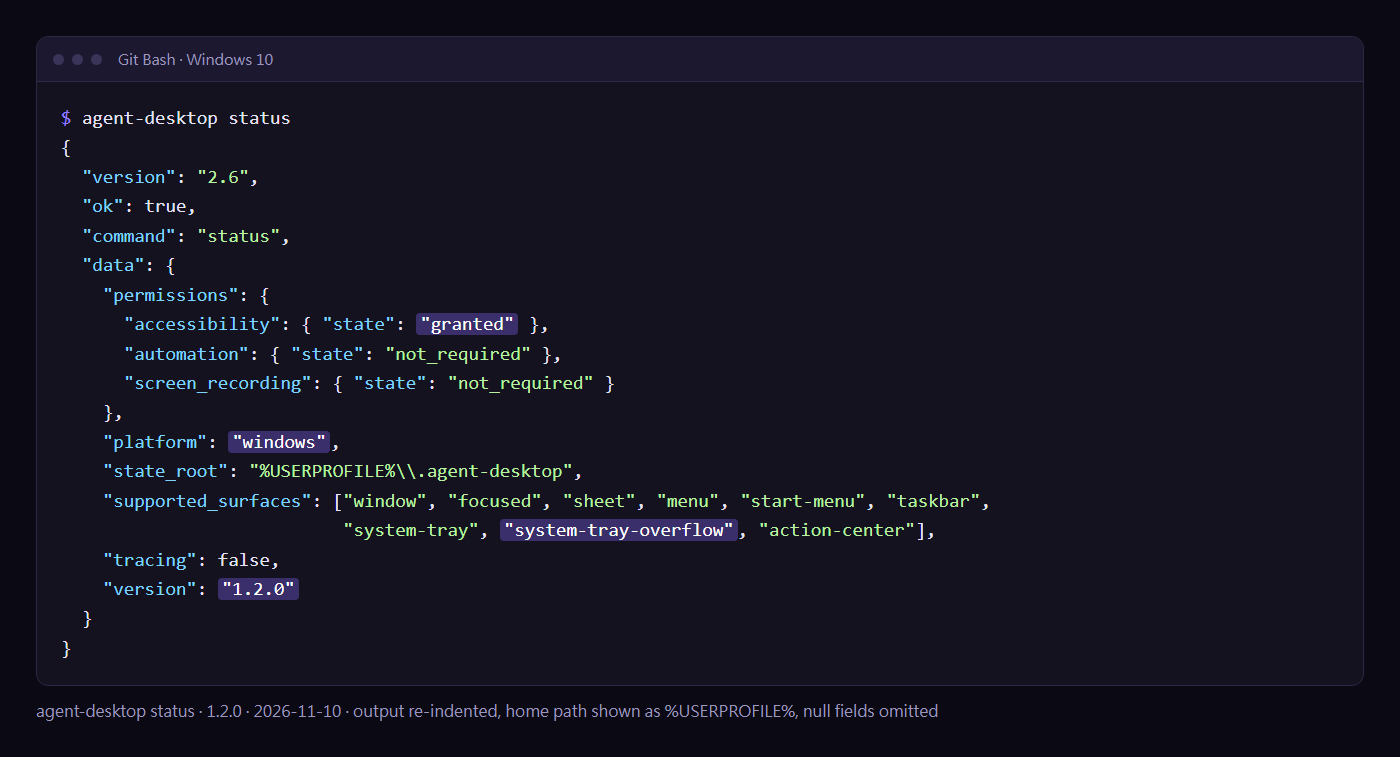
agent-desktop status
status returns JSON. Check three things: accessibility is granted, platform is windows, and supported_surfaces lists the system surfaces it can read. Windows shows no permission dialog.
We tested on Windows 10 only. The new Notepad on Windows 11 is untested. The binary is not code-signed, so Defender may quarantine it, and Smart App Control on Windows 11 blocks it outright when enabled (the official troubleshooting guide says so). The first run in Git Bash prints one line about a Node launcher. That is a notice, not a failed install.
Before installing, we read the npm package's postinstall script. It downloads a binary only when the bundled one fails its hash check, and it verifies the checksum. The only URL in the script is the Releases page of github.com/vercel-labs/agent-desktop (GitHub redirects the download to its own githubusercontent.com), so there is no third-party source. The script also rewrites npm's .cmd and .ps1 shims to call the native binary directly. We also compared hashes: the binary bundled in the npm package has the same sha256 as the one in the GitHub Release, and gh attestation verify passes.
Next, give the agent the manual. There are two routes:
# Route 1: the binary carries its own instructions
agent-desktop skills get desktop
agent-desktop skills get platform     # returns the guide for the OS you are on

# Route 2: install it as a skill with skills.sh
npx skills add https://github.com/vercel-labs/agent-desktop --skill agent-desktop
# on Windows, add one more
npx skills add https://github.com/vercel-labs/agent-desktop --skill agent-desktop-windows
We use route 1 and did not install the skill. The instructions ship inside the binary, so after an upgrade the agent always reads the syntax for the version it is running. A stale skill describing last month's flags cannot happen. If you are building a CLI for agents yourself, this is worth copying: compile the manual into the binary and print it from a subcommand.
Since 1.2.0 it also ships an MCP server mode. An MCP server gives every session that mounts it read and write access to the whole desktop, so we leave it off and call the CLI when we need it. The sandbox command added in 1.3.0 (running in an isolated desktop) only supports macOS for now, and the official Windows skill says it is not available on Windows yet.
The three-minute loop: Notepad
All commands below run in Git Bash. PowerShell differences come later. Open a new Notepad window by hand (the classic Windows 10 Notepad) and type a line.
# 1 find the window id
agent-desktop list-windows
# look for the entry whose app_name is notepad.exe and note its id, for example w-7087970

# 2 read
agent-desktop snapshot --window-id w-7087970 -i --compact
-i keeps interactive elements only. --compact collapses unnamed single-child nodes. Our Notepad came back as 4 KB with 17 refs in about 0.5 seconds. That figure is for calling the native binary in npm's global folder directly. Typing agent-desktop in Git Bash goes through a Node launcher first and takes about 1.1 to 1.3 seconds. The three title-bar buttons look like this (trimmed, from a Traditional Chinese system):
{ "name": "最小化", "role": "button", "ref_id": "@s1lmcgdsiu6pc0:e10", "available_actions": ["Click"] },
{ "name": "最大化", "role": "button", "ref_id": "@s1lmcgdsiu6pc0:e11", "available_actions": ["Click"] },
{ "name": "關閉",   "role": "button", "ref_id": "@s1lmcgdsiu6pc0:e12", "available_actions": ["Click"] }
The field is ref_id, not ref, which matters if you parse the output yourself. Button names follow the system language. 最大化 is Maximize and 還原 is Restore.
The refs in the commands below are from our run. Refs change with every snapshot, so use the ones from your own output.
# 3 click
agent-desktop click @s1lmcgdsiu6pc0:e11

# 4 read again
agent-desktop snapshot --window-id w-7087970 -i --compact
In the second snapshot the button in the same position is now named 還原 (Restore), and its ref carries the new snapshot id. The window did maximize. The loop works.
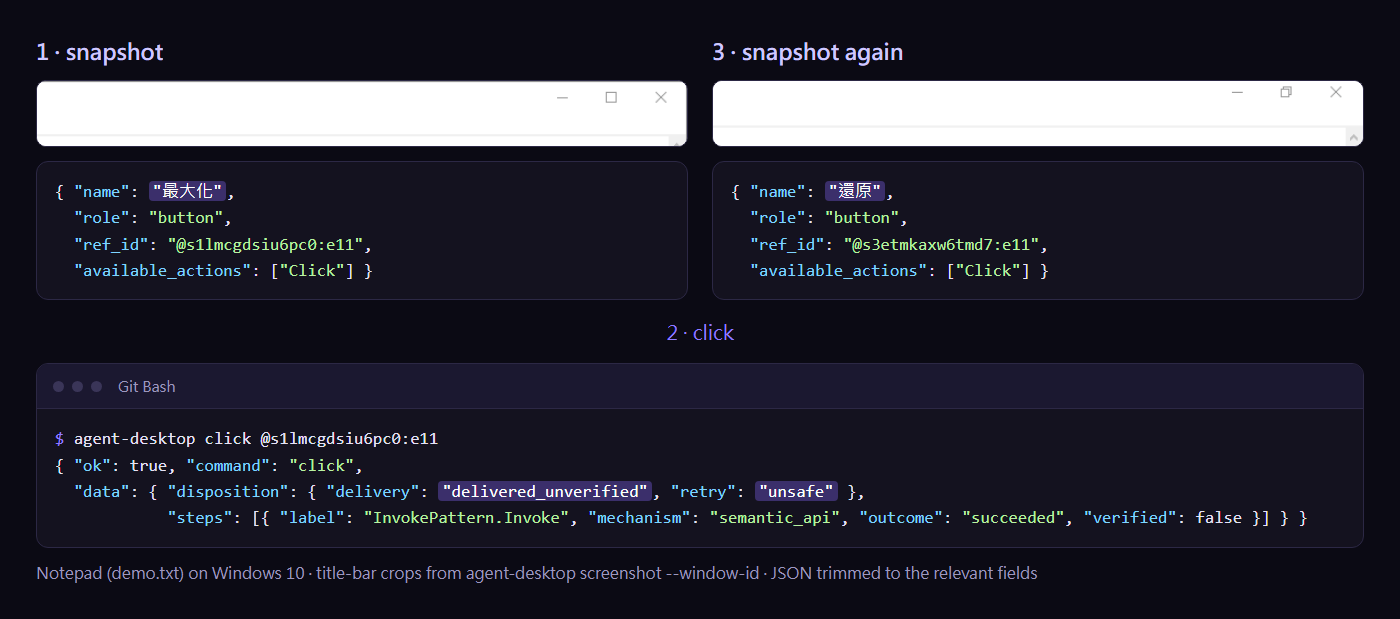
Two fields in the click result matter. delivery is delivered_unverified: the command was sent and the tool cannot confirm the outcome for you. retry is unsafe: do not simply click again, because a toggle would flip back. So every action is followed by a read. You cannot skip that step.
To fill a field, use set-value. It writes the value directly without going through the keyboard, so an active IME cannot mangle the text, and it reads the value back to compare. The text area is the entry whose role is textfield (e1 in our output, named 文字編輯器, "text editor"). Again, use the ref from your own output:
agent-desktop set-value @s2lw9pi2pj0ukf:e1 "hello 中文"
Reading beats clicking: VPN status from the system tray
In this round of testing, the read-only commands were the ones that worked most smoothly. One example is checking whether the VPN is connected. We used to bring up the VPN client window, take a screenshot and read the image. Now it is one line:
agent-desktop snapshot --surface system-tray-overflow -i --compact
This reads the "Show hidden icons" flyout at the right end of the taskbar. No window opens, and the foreground window and cursor stay where they are. On our machine it returned 6.4 KB with 38 buttons in 0.2 seconds. The VPN client's button name states the connection status:
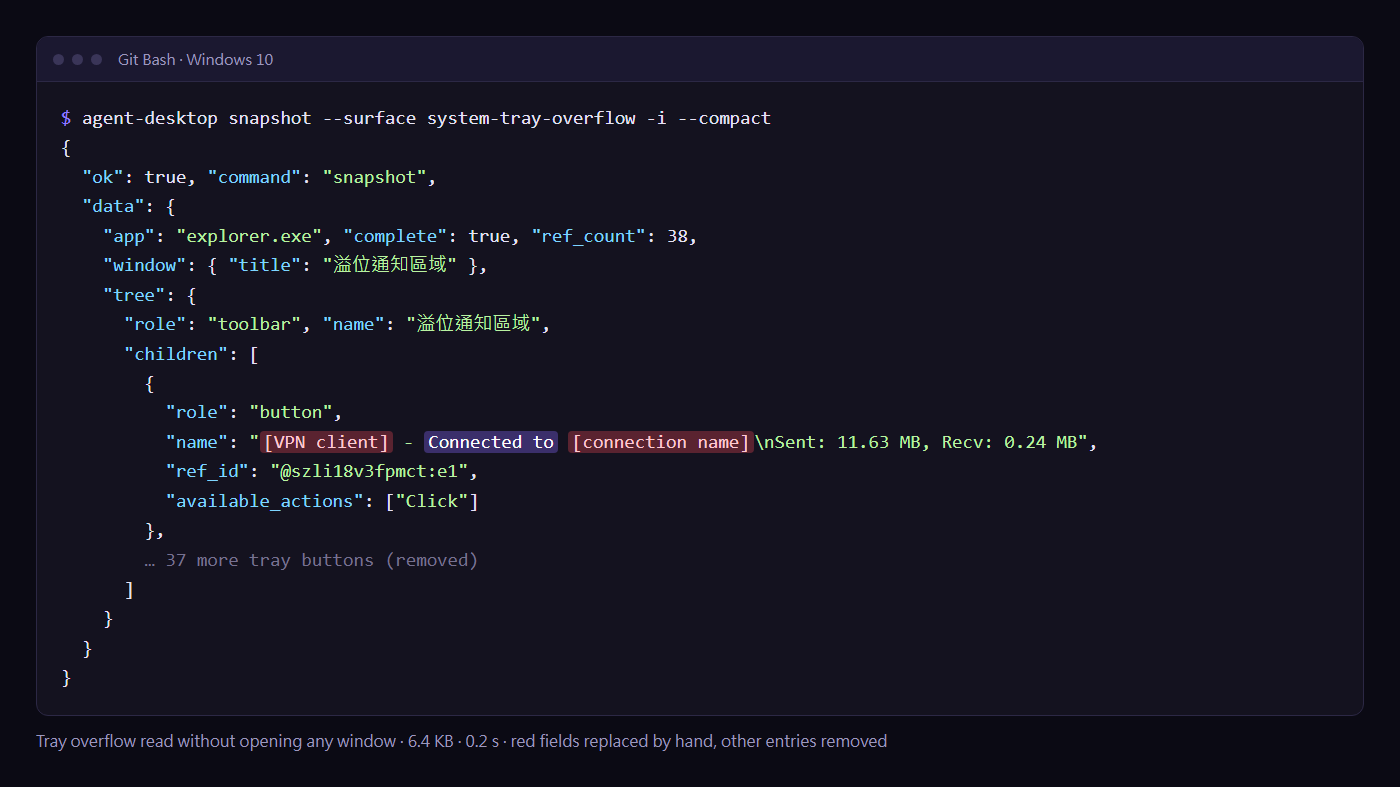
The agent only has to look for Connected to in the name. We replaced the two red fields by hand and removed the other 37 tray entries. The privacy section below explains why.
One catch: a program that lives only in the tray and has no window does not appear in list-apps. Read it through --surface.
Chrome: skeleton first, then drill in
A browser window has a large tree. We opened Chrome with a brand-new profile and a single tab on ultralab.tw/blog, then measured the JSON size of three ways to read it:
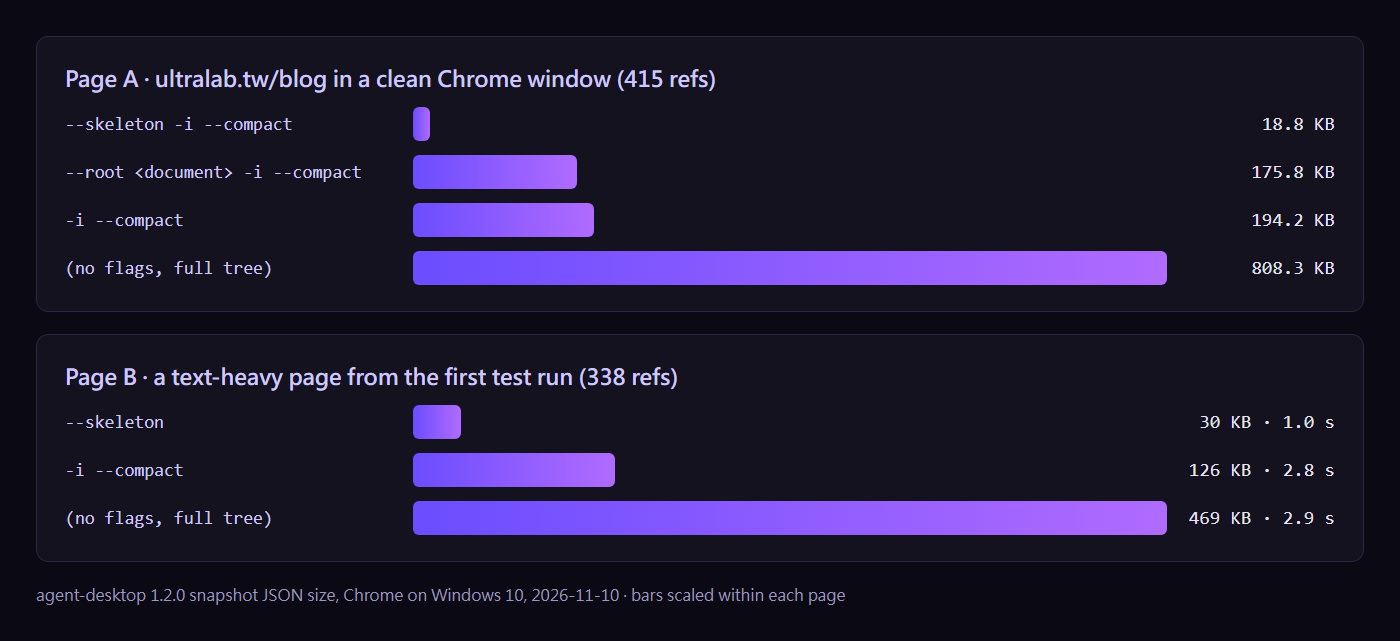
About the chart: Page A was measured in the clean window. Page B is from an earlier run that morning on a different page, with flags as recorded at the time, which is why its first row says only --skeleton. Bar lengths compare within one page only.
| How you read it | This page (415 refs) | A text-heavy page (338 refs, flags as recorded that morning) |
|---|---|---|
--skeleton -i --compact |
18.8 KB | 30 KB, 1.0 s (recorded only as --skeleton) |
-i --compact |
194.2 KB | 126 KB, 2.8 s |
| no flags (full tree) | 808.3 KB | 469 KB, 2.9 s |
This JSON is there for the model to read. At a rough three to four bytes per token, the 808 KB full tree is more than 200,000 tokens. By default, Claude Code's Bash tool puts only about 30,000 characters of output directly into the conversation. Anything longer is saved to a file with a 2,000-character preview, and the agent has to read it in pieces. The full tree (808 KB) and -i --compact (194 KB) both exceed that limit. Only the skeleton (18.8 KB) fits whole. The skeleton is 43 times smaller than the full tree and about 10 times smaller than -i --compact.
The time difference is less stable. In the first test (right column) the skeleton took 1.0 seconds and the full tree 2.9. On the retest the machine was busy with other jobs. Over five runs each, the medians were 3.6, 4.0 and 4.2 seconds and single runs ranged from 3 to 5.5 seconds, with no clear winner. The size difference showed up both times. Saving tokens is the reason to use --skeleton.
Containers cut off in a skeleton carry a children_count, which tells you there is more below. Then read only that region with --root:
agent-desktop snapshot --window-id <id> --skeleton -i --compact
agent-desktop snapshot --root <ref of a container> -i --compact
Two things to remember. First, a shallow drill saves little. We drilled into the whole web document, and because this page has 335 links the result was still 175.8 KB. Second, once you drill into a region, the old refs inside it are replaced. Using one returns STALE_REF, so switch to the refs from the new output.
Work inside a web page is a better fit for agent-browser. Where agent-desktop makes sense on Chrome is the browser's own frame, such as the toolbar. We have only read that part so far and have not clicked it.
Honest limits
The LINE desktop app's sign-in screen does not read. LINE is built with Qt. We tested its sign-in screen: 36 of 39 nodes were unnamed groups, the buttons and checkbox had no role or name, and only two text fields were recognizable. Those two fields have no names and look identical, so set-value, get and type on either one all returned AMBIGUOUS_TARGET. On Windows a ref must be unique in the whole window, and identical twins are refused. The only path left is --headed mouse-click --xy with coordinates, which is clicking by pixel again. We did not test the chat screen after sign-in.
"Does not take focus" does not hold on Windows (we tested on Windows 10, and an upstream report describes it on Windows 11). The docs say ref actions are headless by default and neither move the pointer nor take focus. We checked with two Notepad windows: B in the foreground, commands sent to A in the background, recording the foreground window and cursor position after each step.
| Command | Cursor | Foreground window |
|---|---|---|
| snapshot, get (read-only) | unchanged | unchanged |
| set-value | unchanged | switched to A |
| click | unchanged | switched to A |
The cursor really does stay put, but the window comes to the front. If you are typing, one click from the agent sends your next keystrokes to another window. Upstream issue #567 reports the same behavior and was still open on November 18, 2026. A fix is already up as PR #613 (opened November 8, 2026, not merged as of November 18, and not included in 1.3.0 or 1.3.1). The cause is that UI Automation by default sets focus on an element before acting on it (AutoSetFocus). Until it is fixed, schedule anything that acts as if it will interrupt the person at the keyboard.
Windows PowerShell 5.1 has two traps: one fails with INVALID_ARGS, one fails silently.
First, and both the official README and the Windows skill warn about this one: an unquoted ref disappears. PowerShell treats a bare @token as its splatting operator, so the argument never reaches the program. You get INVALID_ARGS saying the ref is missing:
agent-desktop get @s158g9ceipyrbp:e1 --property value      # INVALID_ARGS
agent-desktop get '@s158g9ceipyrbp:e1' --property value    # works
The second is more dangerous. Pipe a string into --stdin and PowerShell changes the content on the way, while the tool reports success. Measured on Windows PowerShell 5.1 (we did not test PowerShell 7):
| Sent | What the field received | Tool reported |
|---|---|---|
'abc' |
abc plus a line break |
ok: true, delivered_verified |
'中文' (default encoding) |
?? plus a line break |
ok: true, delivered_verified |
中文 (piped from Git Bash instead) |
中文, byte for byte |
ok: true, delivered_verified |
The tool is telling the truth. It wrote the bytes it received, and the PowerShell pipeline had already turned them into a different string. Send a password into a sign-in field this way and you submit the wrong password. Setting $OutputEncoding to UTF-8 first does not rescue it: the Chinese text comes through, but a BOM (EF BB BF) is added in front and written into the field as is. Our rule: call it from Git Bash, and feed secrets with --stdin < file.
Create the password file yourself in a terminal. Write it with printf '%s', not echo, with no trailing line break and in UTF-8, then run agent-desktop set-value <ref> --stdin < password-file. The official example is printf '%s' 'hello' | agent-desktop set-value <ref> --stdin, which follows the same principle. The reason for this route is that the text never appears in the command-line arguments, and the JSON result does not include a value field. To make Claude Code follow the Git Bash rule, write "always use the Bash tool for agent-desktop" in CLAUDE.md, or set CLAUDE_CODE_USE_POWERSHELL_TOOL=0. Without Git for Windows installed, the PowerShell tool is the only one available.
Some commands always need --headed on Windows. type and right-click return POLICY_DENIED without it (the docs say so, and we tested type). For double-click, triple-click and focus the docs say only that they need --headed. They rely on physical input. Prefer set-value for text.
launch notepad may not open a new window. In our first test it returned a Notepad window that was already open on the desktop with unsaved text in it, and we nearly wrote into it. With two windows of the same name, --app notepad raises no error either and picks one on its own. That is why every example above uses --window-id.
Which tool when
- Anything on a web page: agent-browser.
- Desktop apps whose elements have names (classic Win32, Electron, the system tray, Chrome's frame): agent-desktop.
- Apps whose elements have no names (the LINE sign-in screen in our test): go back to screenshots and coordinates, and do not spend time on refs.
- The lock screen and UAC elevation prompts: the docs state these are not supported. It also has no screen recording, only single screenshots.
The test is simple. Run snapshot -i --compact on the target window and see whether the buttons have names. A name has to be unique in the whole window before you get a usable ref.
A privacy note
A snapshot prints the text on screen as it is. When we tested the VPN client, the JSON contained the account name and internal addresses. For Chrome it was the full page text. The agent then reads that into the conversation and it reaches the model.
Three habits:
- Send output to a folder that is not under version control. Do not paste it into public logs, commits, issues or chat rooms. The output in the images comes from a clean Notepad window and a Chrome with a brand-new profile, both opened for the purpose. The first three images are real output laid out in a terminal style, and the small print under each one lists what was changed. The tray image comes from a real desktop, with names redacted by hand and the other entries removed. The lower half of the Chrome comparison chart (the right column of the table) shows numbers from an earlier test.
- The
.agent-desktopfolder under your user directory (~/.agent-desktop/) stores the snapshot ref tables, with desktop content inside. Ours was 1.1 MB after testing. Delete the whole folder when you are not using the tool. - Before the agent reads a window, think about whether it shows anything you would not hand to a model. Naming a
--window-idis safer than letting it scan the desktop.
One more point, about security this time. What a snapshot returns is untrusted input. Text on a web page or in a message can carry instructions aimed at the agent (prompt injection), and this agent can click and set-value. So do not put the whole Bash(agent-desktop:*) pattern into Claude Code's allow list. Keep the commands that act behind a per-call confirmation.
If you are new to Claude Code, start with our hands-on Claude Code tutorial.
FAQ
How is agent-desktop different from agent-browser, and which one should I use?
Both come from Vercel Labs and work the same way: read the UI as structured data, give every actionable element a ref, and let the agent act on refs. agent-browser handles web pages. agent-desktop handles desktop apps, through UI Automation on Windows. Use agent-browser for anything inside a web page, and agent-desktop for Notepad, the system tray, Electron apps and similar. For an app whose elements have no names, neither helps and you are back to screenshots and coordinates.
Will agent-desktop steal the window I am working in?
On our Windows 10 machine (build 19045), the read-only commands snapshot, find, get, is and screenshot left the foreground window and the cursor alone. click and set-value did not move the cursor, but they brought the target window to the front, so whatever you type next lands there. That differs from the documented headless behavior. Upstream issue #567 describes the same thing and was still open on November 18, 2026, with 1.3.1 as the latest release. A fix, PR #613, is open and not yet merged.
Where does the snapshot content go?
agent-desktop has no model inside. It prints the accessibility tree as JSON. The agent that called it then reads that JSON into the conversation, so account names, message text and full page text on screen all reach the model you use. The tool also keeps a snapshot ref table in a .agent-desktop folder under your user directory, and that holds desktop content too. Keep the output out of public logs, commits and chat rooms.